The Ultimate Setup Guide for Your Macbook Air 13 2024
Introduction
The Macbook Air 13 2024 marks another step in Apple's laptop evolution: a thin, light notebook designed for everyday productivity, creative work, and long-haul portability. For buyers who prioritize battery life, silent operation, and an OLED-quality experience in a compact chassis, the 13-inch Air often becomes the go-to. This guide walks through initial setup, recommended configurations for common real‑world use cases, key optimizations that preserve performance and battery life, and the accessories and software choices that make the machine fit its owner’s workflow. The tone is editorial and practical: it assumes readers want clear, actionable advice without marketing fluff.
Initial Out‑of‑the‑Box Setup
When powering on the Macbook Air 13 2024 for the first time, the setup assistant will walk through language, Wi‑Fi, Apple ID, and iCloud settings. These steps are quick, but a few choices materially affect privacy, security, and the device’s future convenience.
Essential first choices
- Apple ID and iCloud: Signing in with an Apple ID enables iCloud sync for contacts, calendars, Safari tabs, and iCloud Drive. For someone who already uses other Apple devices, this is the easiest path to continuity features like Handoff and Universal Clipboard. If the Mac will be used for work with managed accounts, consider whether to use a personal Apple ID or a corporate-managed one.
- FileVault: Enable FileVault full-disk encryption during setup to protect data if the laptop is lost or stolen. It adds negligible performance overhead on Apple silicon while offering strong security.
- Find My: Keep this turned on. Activation helps locate a missing Mac and supports remote locking or erasure if needed.
- Two‑factor authentication (2FA): If 2FA is not already enabled on the Apple ID, enable it now. Many services used for work and personal finance require it, and it protects access to iCloud keys and backups.
Migration vs. Fresh Start
Users who upgrade from an older Mac should choose between Migration Assistant and a clean install. Migration Assistant transfers apps, files, and settings and is the fastest way to get back to work. A clean install (manual file copy and fresh app installs) reduces legacy cruft and is recommended when the previous system had long-standing issues or many unused apps.
Detailed Product Review and Analysis
The Macbook Air 13 2024 is primarily an exercise in balancing portability with capability. Below is an objective look at its strengths and tradeoffs, focusing on what buyers usually care about.
Performance and chip
The machine is powered by Apple’s latest silicon for that model year, delivering strong single‑thread and multi‑thread performance for most productivity tasks. Real‑world performance shows fast app launches, smooth web browsing with dozens of tabs, and responsive multitasking even when multiple apps are active. For CPU‑heavy workflows like large video renders or heavy simulation, higher‑memory and higher‑core configurations perform noticeably better.
Battery life and thermals
Battery life is one of the Macbook Air’s headline features. In everyday use—email, document editing, web conferencing, and light photo edits—users can expect all‑day battery performance. The fanless design keeps operation silent, but sustained heavy loads will push thermal throttling earlier than in larger, actively cooled laptops. This is an acceptable tradeoff for those who value quietness and weight savings.
Display and webcam
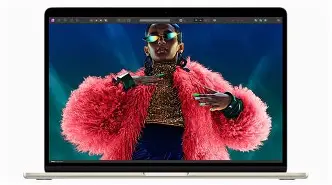
The 13‑inch display offers sharp text and accurate colors suitable for content consumption and most creative work. Color‑critical professionals may want to connect to a calibrated external display for final grading. The webcam and built‑in microphones are sufficient for standard video calls; however, hybrid workers who rely on pro-level video conferencing might consider an external webcam or dedicated microphone for studio-grade quality.
Looking for the best Laptops & Computers deals on Amazon?
Browse Now →Keyboard, trackpad, and build
The keyboard offers a comfortable profile for extended typing sessions and the Force Touch trackpad remains among the best in class for precision. The chassis is lightweight and solid; hinge stiffness and overall fit-and-finish reflect Apple’s quality control. Port selection remains intentionally minimal, so a USB‑C hub is a common accessory for those needing multiple peripherals.
Ports and expandability
Expect two USB‑C/Thunderbolt ports and a headphone jack. No internal expandability is available; storage and memory must be chosen at purchase. That makes initial configuration choices important for long-term satisfaction.
Pros & Cons
- Pros
- Lightweight and highly portable for daily commuting and travel
- Long battery life for mixed workloads
- Silent operation due to fanless design
- Excellent trackpad and refined keyboard
- Strong single‑core performance and good thermal efficiency for most tasks
- Cons
- Limited ports—often requires dongles for external devices
- Non‑user‑upgradeable RAM and storage—choose wisely at purchase
- Under sustained heavy loads, thermal throttling reduces peak performance
- Creative professionals may need external displays or storage for large projects
Configuration Comparison Table
| Configuration | Target user | Memory (RAM) | Storage | Recommended for |
|---|---|---|---|---|
| Base | Students, casual users | 8 GB | 256 GB | Web browsing, document editing, streaming, light photo edits |
| Balanced | Power users, remote workers | 16 GB | 512 GB | Multitasking, photo editing, moderate video editing, local dev |
| Creative / Pro | Frequent editors, developers with VMs | 24 GB or more | 1 TB+ | Large photo libraries, 4K video editing, virtualization |
Buying Guide: Choose the Right Macbook Air 13 2024
Decision factors for the Macbook Air 13 2024 mostly reduce to RAM, storage, and whether the Air’s design matches the buyer’s workload.
How much RAM?
- 8 GB — Acceptable for light, everyday tasks, students, and casual users who use cloud storage to manage space.
- 16 GB — The sweet spot for most professionals who run many apps, browser tabs, or light virtualization. Recommended for a future-proofed purchase.
- 24 GB or more — For creators, heavy multitaskers, and developers running multiple containers or virtual machines. Consider this if work involves large RAW photo files, 4K editing, or big local databases.
How much storage?
Because internal storage cannot be upgraded later, plan for three years of use when choosing capacity.
- 256 GB: Works if most files are in iCloud or external storage, but will fill quickly with media.
- 512 GB: Comfortable for most users who keep local projects and a moderate media library.
- 1 TB or higher: Ideal for heavy creatives or those who prefer local copies of videos and large projects.
Warranty and protection
AppleCare extends coverage and support; business buyers should budget for it. For frequent travelers, theft or accidental damage protection and a good sleeve provide practical value.
Refurbished vs new
Certified refurbished units from reputable sources can save money and often include a warranty. Ensure the return policy and warranty length match expectations.
Essential accessories
- USB‑C hub: For HDMI, Ethernet, SD card, and multiple USB ports.
- External SSD (Thunderbolt or USB‑C): For fast project storage or Time Machine backups.
- MagSafe charger and spare cable: Convenient for frequent travelers.
- Lightweight sleeve or protective case: Keeps the thin chassis free from dings and scratches.
- External monitor or dock: For desktop replacement setups—look for USB‑C hubs that provide power delivery and display outputs.
Software and Productivity Setup
After the initial OS setup, these software choices and system tweaks make the Macbook Air 13 2024 feel personalized and efficient.
Discover deals on Laptops & Computers — updated daily.
View Offers →Core apps to install
- Package manager: Homebrew — simplifies installing command‑line tools and open source utilities.
- Terminal replacement: iTerm2 or an enhanced terminal for developers.
- Editor/IDE: Visual Studio Code, JetBrains tools, or Xcode depending on the developer’s stack.
- Browser: Safari is optimized for macOS, but Chromium-based browsers like Chrome or Edge may be needed for web testing.
- Backup: Time Machine configured to an external drive or networked backup target.
- Productivity tools: Note apps, task managers, and cloud storage apps that the user already relies on.
Security and privacy tweaks
- Keep Gatekeeper and automatic app updates enabled to reduce exposure to malicious software.
- Use a password manager that integrates with Safari and the system keychain.
- Limit background apps that request location or camera access; review permissions in System Settings.
Performance and battery optimizations
- Enable Optimized Battery Charging to slow battery aging if the Mac is often plugged in.
- Use power profiles (Energy Saver) when on the go to trim background activity and dim displays.
- Keep software up to date; Apple silicon receives performance and efficiency improvements in macOS updates.
Workflows by Use Case
Students and writers
Students benefit from the Air’s light weight, long battery, and excellent typing experience. Cloud syncing and iCloud Drive help manage storage. A protective sleeve and a USB‑C hub for campus labs are helpful additions.
Remote and hybrid professionals
Business users will appreciate the Mac’s webcam, battery life, and combination of portability and capability. Multiple virtual desktops, a compact dock, and a comfortable external keyboard/mouse improve longer remote sessions.
Developers
Developers should favor higher RAM if running containers or VMs. Install Homebrew, Docker Desktop (Apple silicon version), and a preferred editor. Note: some legacy Intel-only tools may require Rosetta; keep Rosetta installed if needed.
Creators (photo, video, audio)
Creators should prioritize memory and internal storage. For color‑critical work, an external calibrated monitor is recommended. For large video projects, an external Thunderbolt SSD for project files speeds editing and reduces stress on internal storage.
Backup Strategy
A multi-layered backup strategy is best. Time Machine to an external drive provides local recovery. iCloud Drive or another cloud provider keeps essential documents synced offsite. For mission‑critical work, a mirrored external drive or a network backup solution adds redundancy.
Maintenance and Troubleshooting Tips
- Regularly reboot: A weekly restart helps apply updates and clear transient issues.
- Monitor storage: macOS reports storage usage—archive or offload large files before free space gets low.
- Reset NVRAM/SMC equivalents: Although Apple silicon handles many low-level tasks differently, safe-mode boot and reinstalling macOS are valid troubleshooting steps for persistent problems.
- Use Console and Activity Monitor: For diagnosing runaway apps and tracking resource usage.
Conclusion
The Macbook Air 13 2024 remains a compelling option for those who value portability, quiet operation, and strong everyday performance. Its design choices—particularly the fanless chassis and minimal port selection—make it ideal for commuters, writers, students, and many creative professionals when paired with the right external accessories. The most important purchase decisions are RAM and storage: choose configurations with future workloads in mind because upgrades are not possible later. With the setup steps, software recommendations, and real‑world workflow notes above, the device can be tailored to meet a wide range of needs, from simple document work to serious creative projects. Proper backup, security settings, and a small set of accessories will ensure the Macbook Air 13 2024 remains reliable and productive for years of daily use.